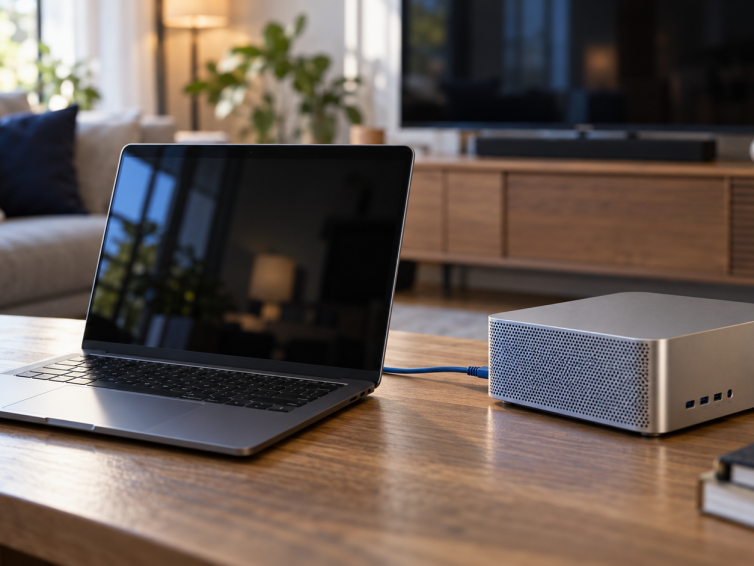
A preview of the new Eddy agent for Windows, Mac, Linux and Raspberry Pi and how it connects your entertainment devices without port forwarding.
A preview of the new Eddy agent for Windows, Mac, Linux and Raspberry Pi and how it connects your entertainment devices without port forwarding.
See how Eddy maps local on and off actions into Matter and what you need before testing a TV with Alexa or Google Home.
Compare the controls, apps, and equipment behind each connection before choosing a smart home integration.
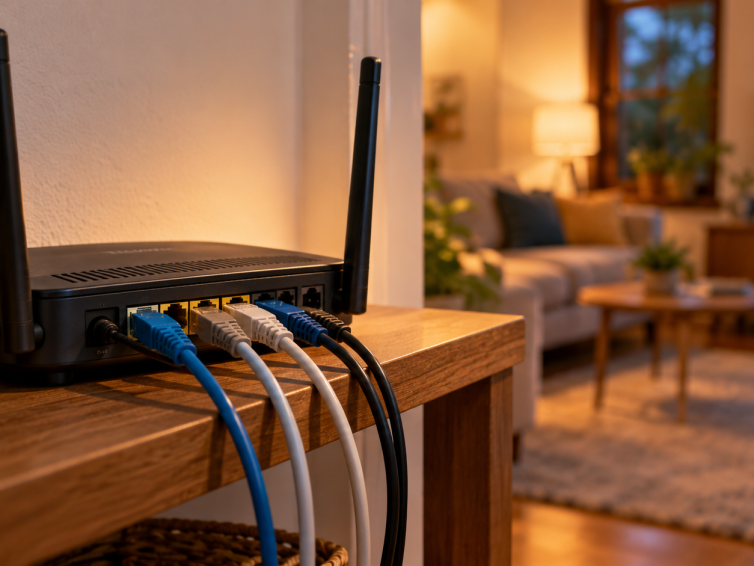
Modern routers can restrict incoming traffic by source address and service, but Eddy Agent avoids exposing a home device control port in the first place.
Start Eddy with one supported controller, choose the right local connection, and build an activity from commands you have tested.
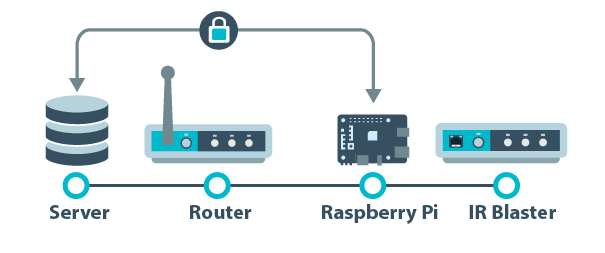
Learn how Eddy Bridge connects local entertainment equipment, what its secure cloud connection protects, and how the V2 agent differs from the original Pi image.
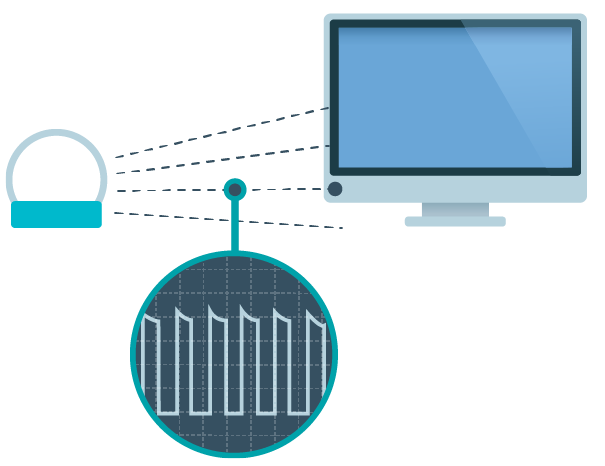
Learn what an IR blaster does, check emitter placement, and choose device commands that keep an entertainment activity predictable.
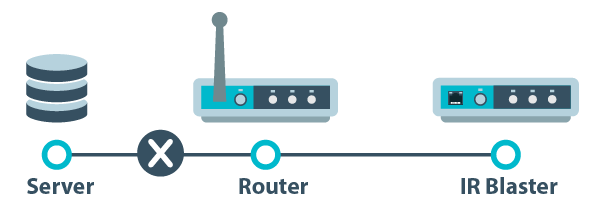
Understand what port forwarding exposes, what source filters can and cannot do, and why Eddy’s outbound agent is the preferred new connection path.
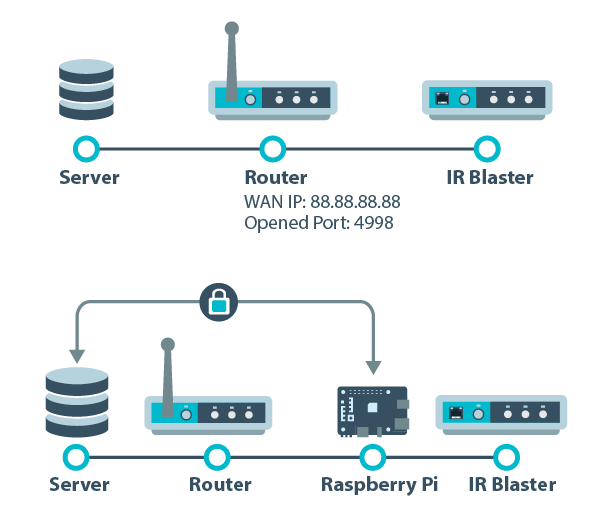
Compare an inbound router exception with the bridge and new agent approach, including availability, source filters and the limits of transport encryption.

Use one entertainment setup to understand the controller, device, button and activity concepts, with clear checks for legacy scene behavior.
Use a trial to test your own devices, daily commands, and account settings before choosing an Eddy subscription.

Understand the original custom and smart home skill designs, check present availability and choose the supported commands your household actually needs.
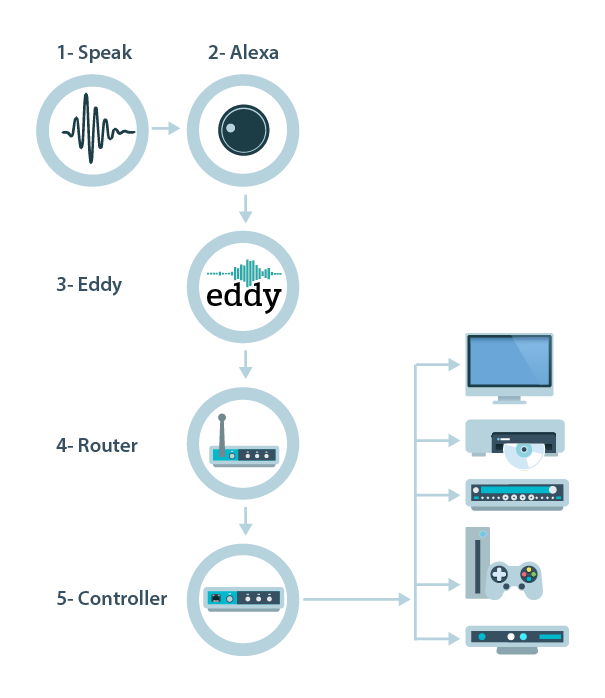
Follow the account, service and local-device parts of a voice command, and distinguish the legacy forwarding path from the new outbound agent and optional Matter path.
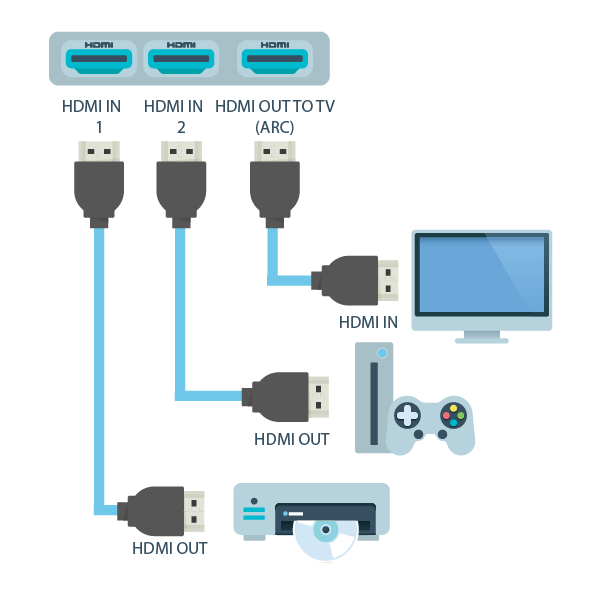
Read HDMI CEC source and destination addresses, distinguish Active Source from Request Active Source, and check the control path before using device commands.
Compare infrared, HDMI-CEC and direct network control using the commands, hardware and feedback your actual equipment supports.
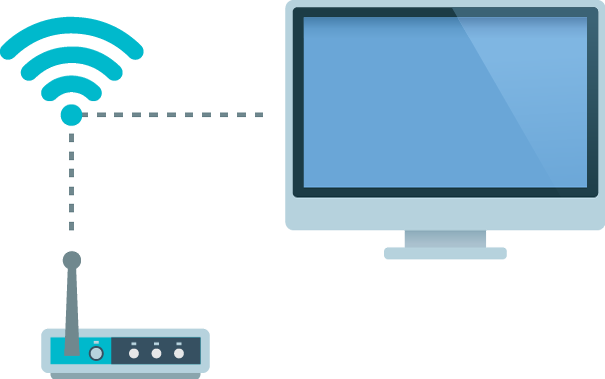
Understand network addresses, TCP, HTTP APIs, Wake on LAN and authorized ADB so you can choose the correct control path for your equipment.
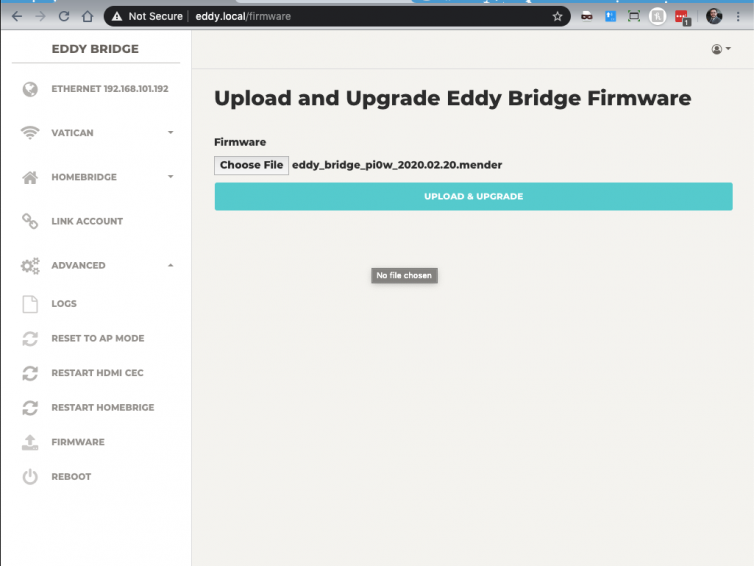
Identify your legacy Eddy Bridge version and Raspberry Pi model before using the earlier browser-based firmware update method.
Use Wake on LAN with the correct interface address, supported power state and local Eddy host, then verify the device is ready for its next command.
Choose a Raspberry Pi by software compatibility, reliable power, storage, networking, and the control hardware your Eddy setup actually needs.
Connect Apple Home to Eddy Bridge V2 using the optional Homebridge plugin. Download the preview, configure device mappings and keep command execution in the bridge agent.
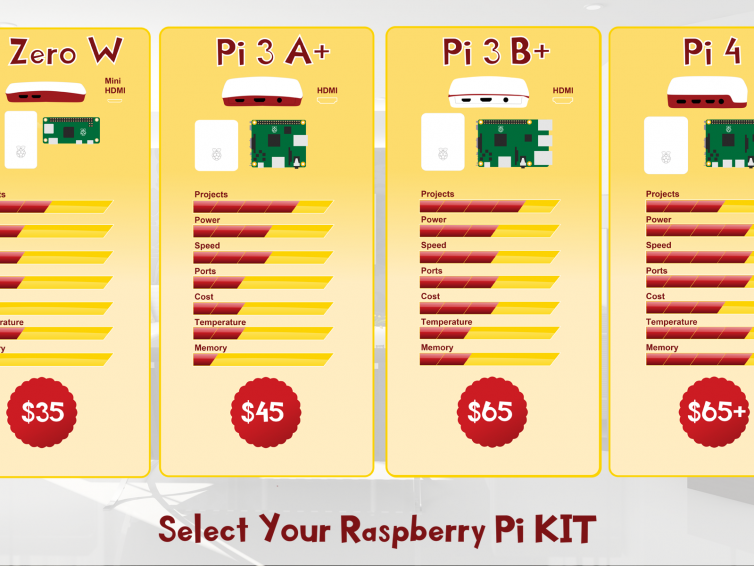
When it comes to Home Automation, there is only one clear winner in terms of raspberry pi. Make sure you pick the correct raspberry pi for installing Eddy Bridge and…
This is the firmware for Eddy Bridge. You need to have Eddy Bridge already installed for this firmware to work. You can find instructions to install Eddy Bridge here. Here…

Trying before subscribing is the best solution, if you are worried about things working out. Sometimes things sound too good on paper but are difficult in real life. Some people…
What is Wake on Lan? Wake on LAN (WOL) allows sending a special message to wake up a computer or device from sleep mode. Note: this will only work if…