Eddy Matter support starts with local power control
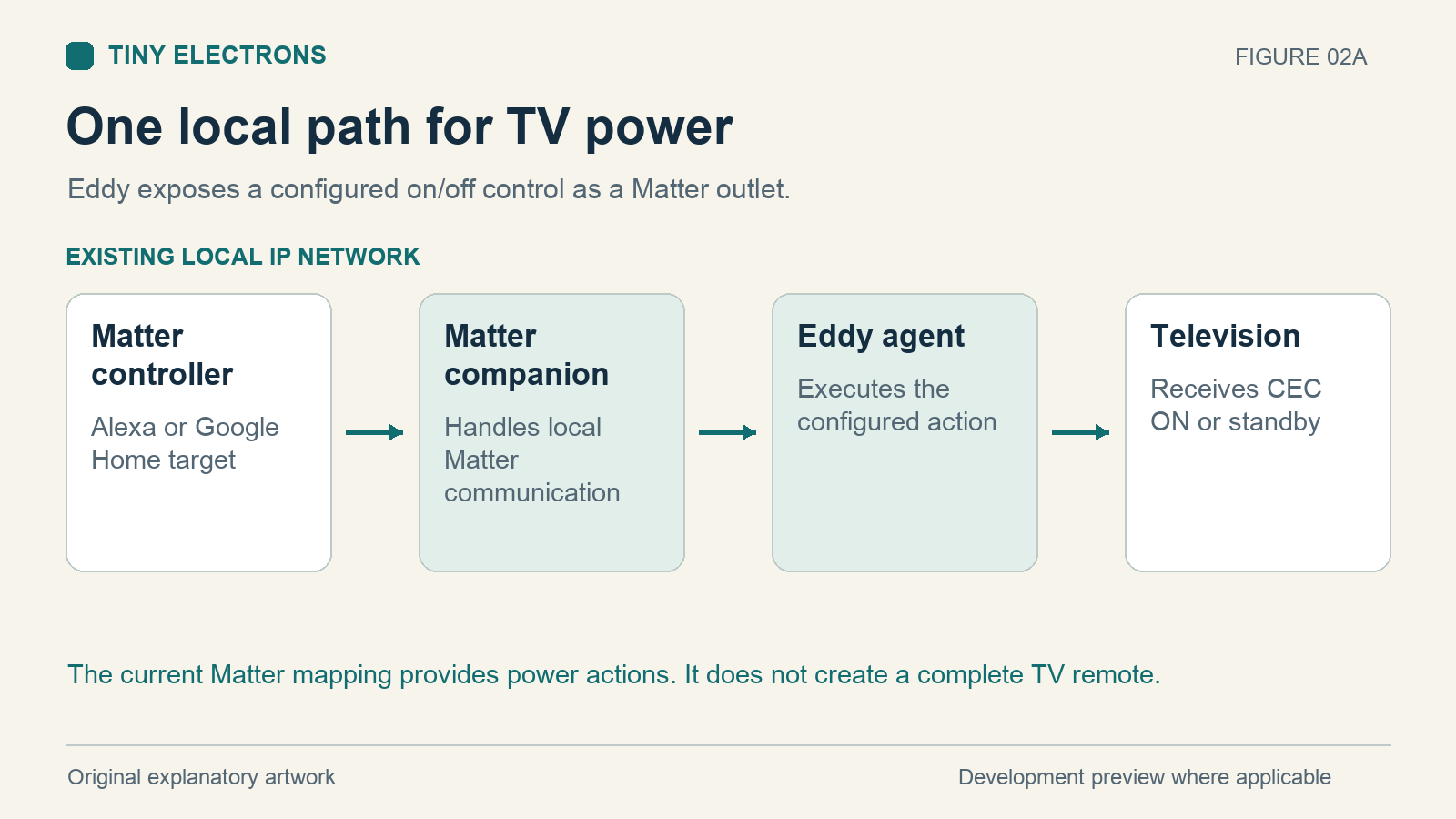
Eddy Matter support connects configured local on and off actions to a Matter controller. A TV power mapping, for example, can let the controller ask Eddy to send the TV an HDMI CEC on or standby command. The current development integration targets Alexa and Google Home.
This development preview uses a test device identity. Physical pairing and operation depend on your hub, television and CEC hardware and require testing with that combination. The development bridge is not a certified Matter product.
What Matter adds
Matter defines a shared way for compatible smart home equipment to communicate. The Connectivity Standards Alliance overview explains its role across ecosystems. For Eddy, the practical starting point is a local on and off control.
The bridge exposes that control as an on/off outlet. Calling it TV makes the purpose easier to recognize, but the name does not create volume, channels, input selection or playback controls. Those functions still need a suitable existing Eddy integration.
What you need
You need the Eddy agent and its Matter companion, a compatible Matter controller for your ecosystem and a local network that allows their communication. The current bridge uses your existing IP network. It does not require a Thread radio just because it uses Matter.
Keep the agent and hub on the same local network with IPv6, multicast discovery and the bridge’s local UDP communication available. Guest Wi Fi and client isolation can block this even when both devices can browse the internet. Do not open a router port to solve local Matter discovery.
For the supplied TV example, you also need a working CEC path. That includes compatible CEC hardware, the helper software, an HDMI connection to the TV and CEC enabled in the TV settings. Vendor names such as Anynet+, Simplink or BRAVIA Sync may appear in those settings.
Set up one control
The Raspberry Pi package work includes an Eddy Setup browser wizard that can enable Matter and show a pairing QR code. Desktop bundles include the companion, but their Matter configuration is a separate step. These platform differences matter when choosing a machine for your first test.
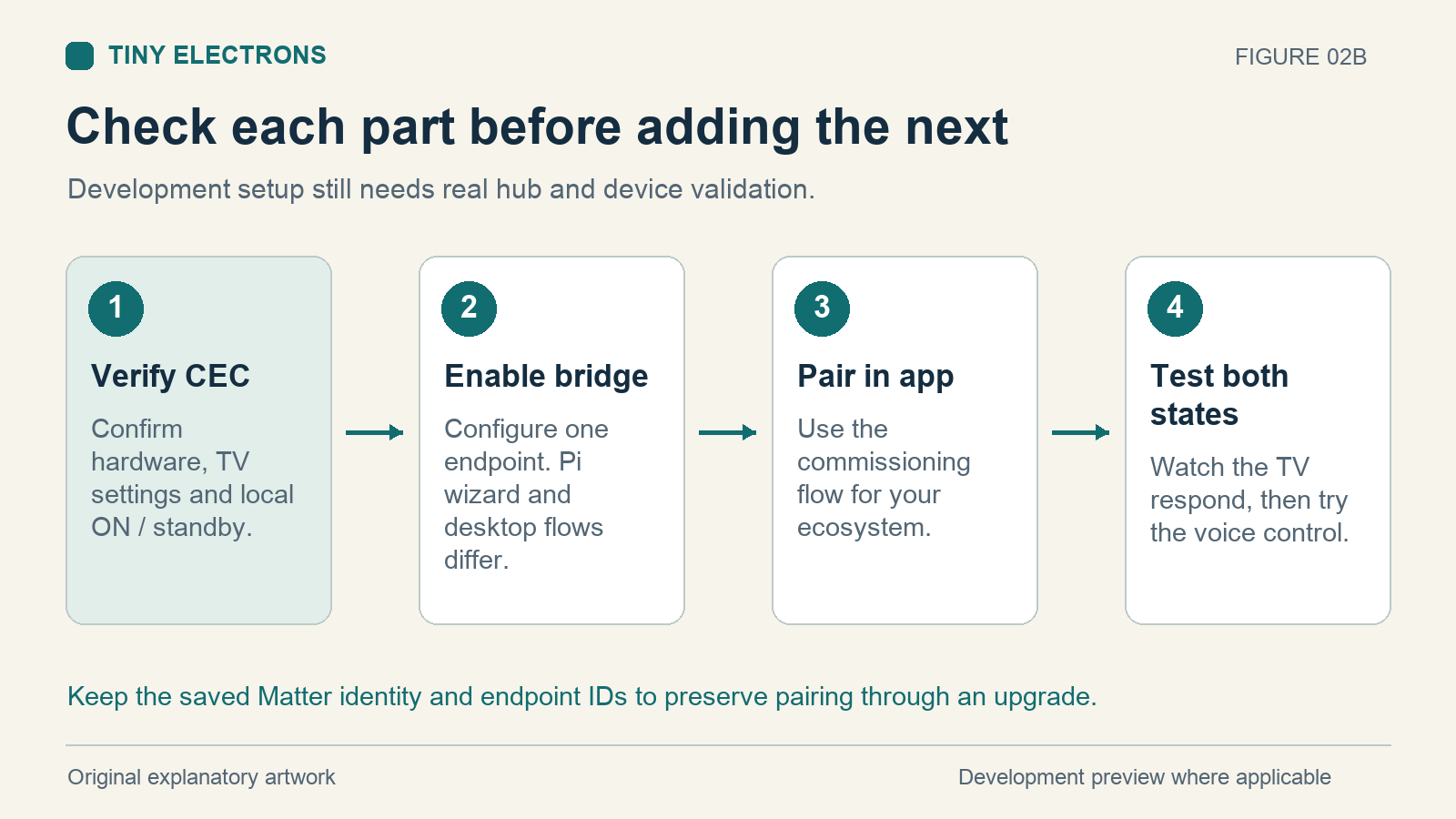
Start with a single TV mapping. Make sure its explicit on command works and its standby command works before commissioning the bridge into an ecosystem. If the command cannot control the TV locally, pairing it with Matter will not fix the device path.
Use the ecosystem app to add the Matter device while the bridge is ready to pair. Development requirements apply, including registering the test vendor and product identity in a Google Home developer project with the account used for testing. The current implementation uses development identifiers rather than production attestation. The matter.js ecosystem notes describe its development pairing requirements; follow the current ecosystem instructions for the hub you are using.
Eddy account pairing and Matter commissioning are separate. Account pairing links the agent to Eddy’s cloud service. Matter commissioning links the local bridge to an ecosystem. The local Matter mode can run without Eddy cloud credentials. Adding it to an already linked agent can retain the cloud path as well.
What the displayed power state means
The supplied TV example maps on and off without a separate status query. In that arrangement, the displayed value follows the last successful commanded action. If someone uses the original remote, the display may no longer match the TV.
The current source also supports an optional status mapping that reads real device power, using a compatible CEC query, supported adapter status or a configured HTTP response. The bridge polls configured status and marks an endpoint unreachable when that observation fails. This needs a working response from the actual device; simply reaching its IP address does not prove that its screen is on.
Check which arrangement your mapping uses. A successful send and a confirmed device state answer different questions. Avoid describing the displayed state as verified feedback unless you have configured and tested that feedback path.
Keep pairing through an upgrade
The bridge saves its Matter identity and pairing information locally. Keep that state and stable endpoint identifiers when upgrading. Removing the state makes the bridge forget its pairing and requires setup again.
If the accessory becomes unavailable, first check that the agent is running, that the hub can reach it and that the local command still works. Resetting the bridge at the start of troubleshooting can erase pairing without fixing the network problem.
To add a second ecosystem, use the sharing flow in the ecosystem that already controls the bridge. It supplies a new commissioning code. The original saved QR code does not automatically reopen an already paired bridge.
Test the result in the room
Send on and off from the app and watch the TV respond. Then try the corresponding voice control. If a command times out, check the TV before repeating it. A missing response does not always mean that nothing happened.
Name the accessory clearly and keep it in the right room. Test on from standby, off from the running state and a restart of the agent without deleting its state. Record the hub, TV model, control hardware and result so you can repeat the same test after an update.
Google’s supported Matter device types explain what its ecosystem can expose. Those capabilities do not add commands to Eddy’s on/off mapping. Start with one power control that works in the room, then decide whether a wider activity belongs behind it. For background on Eddy’s controller model, see Controllers Devices Buttons and Activities.