Set Up Chromecast Control with the Legacy Eddy Bridge
The earlier Eddy Bridge could discover compatible Chromecast receivers on the local network and provide supported playback controls. The exact controls depend on the receiver, active app or media session, and installed Eddy version.
This is a legacy setup guide with historical screenshots. It does not establish support for every Google TV or Cast device, or the public availability of Chromecast support in the separate V2 development agent.

Prepare the receiver and network
First finish the manufacturer’s setup for your exact streaming device and confirm that normal casting works from an appropriate app. Use Google’s streaming help for the relevant model. Then place the receiver and your existing compatible Eddy Bridge on a local network where they can communicate.
Guest-network isolation or router settings can prevent devices from finding one another. Google’s network troubleshooting guide describes these restrictions. Do not assume that sharing an internet connection means two devices can communicate locally.
Understand the available commands
The original integration included playback and audio commands such as pause, play, volume adjustment, mute and unmute. Their behavior depends on the receiver and active media session. App launching requires a supported app mapping and is not a guarantee that Eddy can open any streaming service or start any requested title.
Use the volume range shown by your installed integration. For a purchase, check the current manufacturer information for the exact model; this article is a setup reference.
Add the receiver in the legacy interface
- Start your existing compatible Eddy Bridge and confirm the receiver is powered and reachable on the local network.
- Open the Controllers page and choose Search For Controllers in the earlier interface.
- Check the discovered device name and address before selecting it.
- Use Add Controller for the intended compatible receiver.
- Review the device, buttons and activities created by your installed version. Do not assume that a discovered receiver supports every generated button.
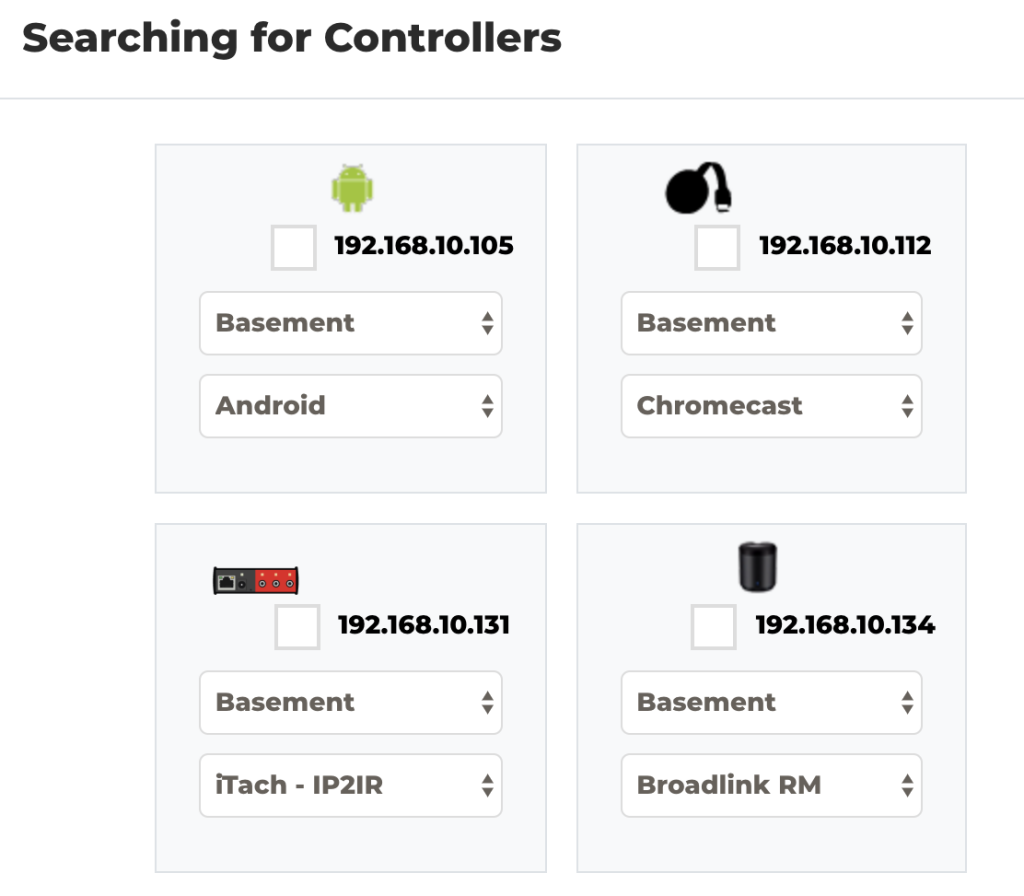
Historical controller discovery screen. Results depend on the network and receiver.
Test playback before adding an activity
Start supported media normally, then open the Buttons page. Test pause once and confirm that the picture actually pauses. Test play, then one small volume change. Avoid repeatedly sending volume commands while the outcome is uncertain.

If a button does not work, record the receiver model, active app, command and visible outcome. Check normal casting again before changing Eddy settings. A network connection alone does not establish app-level control support.
Build on the commands that pass
After the individual controls work, add a short activity. Evaluate voice control separately from the playback test so that you can identify which connection failed. Keep the original app available while testing.