Set Up a Global Caché Controller with Eddy
A Global Caché controller connects equipment such as an infrared remote-controlled TV to your network. The outputs and available functions depend on the exact model: an IR controller, serial controller and relay controller are not interchangeable.
This guide documents the earlier Raspberry Pi Eddy Bridge interface. The screenshots are historical. Confirm the controller model, installed bridge version and supported functions before using these steps. The V2 agent is separate development work; this guide does not establish its release availability or hardware compatibility.

Choose the required controller function
The original guide covered examples from the iTach IR and serial, Flex, and GC-100 families. Treat those as historical examples rather than a complete current compatibility list. Check the manufacturer’s documentation for the exact model, required cable or accessory, output type and IR-learning capability before buying hardware.
Global Caché provides product information, and Control Tower provides an IR-code database. Database availability, permissions and model coverage should be checked when importing codes.
Connect the controller to your network
Follow the manufacturer’s model-specific wired or Wi-Fi setup instructions. Place the controller and your existing Eddy Bridge on a trusted local network where they can communicate. Confirm that the manufacturer’s own setup or control test works first. No router port-forwarding step is required by this local setup procedure.
Add the controller in the legacy interface
- Start your existing, compatible Eddy Bridge installation.
- Open the Controllers page and use Search For Controllers in the earlier interface.
- Inspect the discovered address and model before selecting the intended controller.
- Select Add Controller if the result matches your equipment. Discovery may not find every device; an empty scan is not proof that a controller is unsupported.

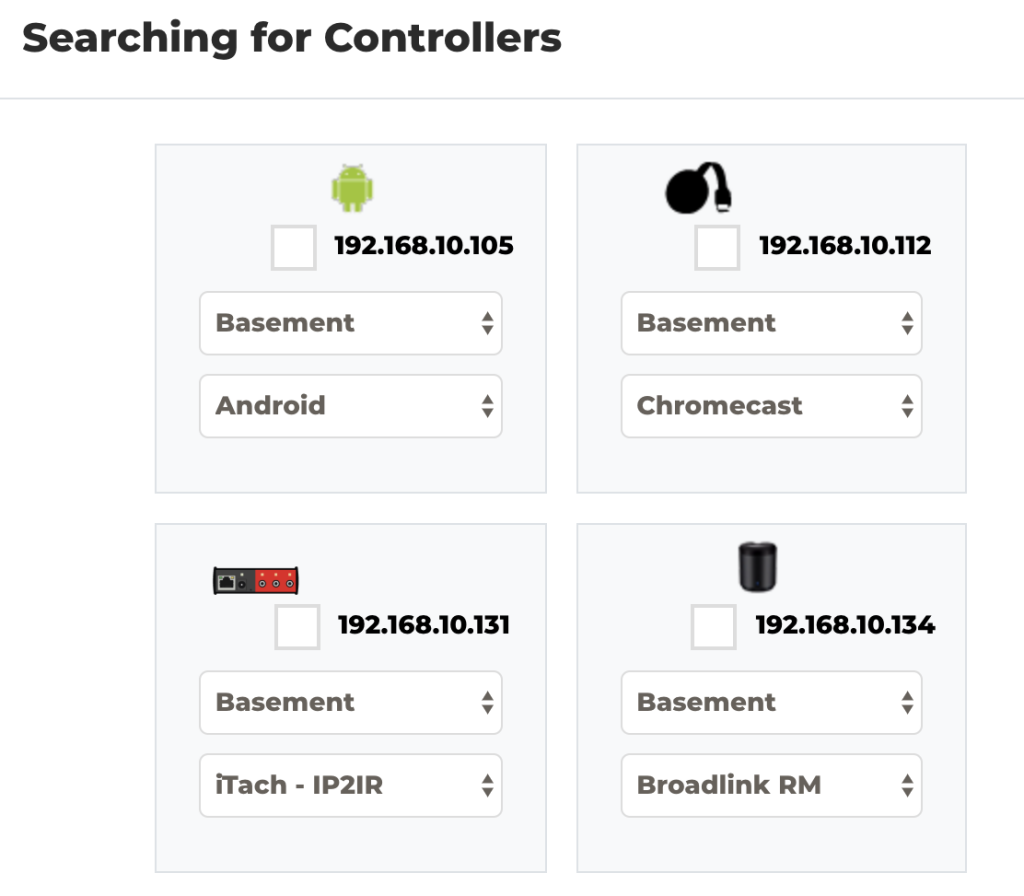
Historical search screen. Check the address and model before adding a controller.
Add a device and choose its output port
Open Devices. In the legacy workflow, choose the device brand and model, select the controller output port, then choose the buttons to import. Confirm the emitter cable is connected to the same port. A matching brand name alone does not establish that every imported code fits your device.
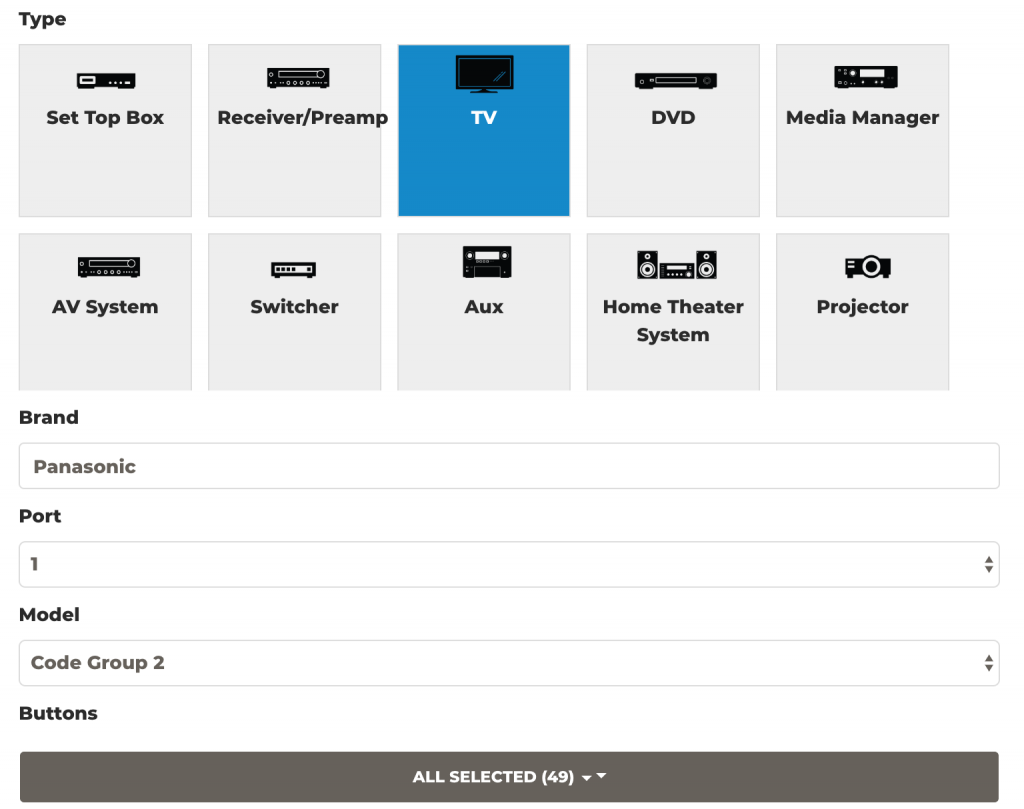
For IR, position the emitter so the target device can receive its signal. Test one imported button before adding the rest. If no suitable code set is available, use the learning function only when both the controller and your installed Eddy version support it.
Learn and test an IR command
- Open the legacy button editor and start learning.
- Use the learning receiver specified in your controller’s manual. It may be separate from the emitter output.
- Aim the original remote at that receiver and send one button press.
- Wait for the learned code to appear, save it, and test it once against the target device.
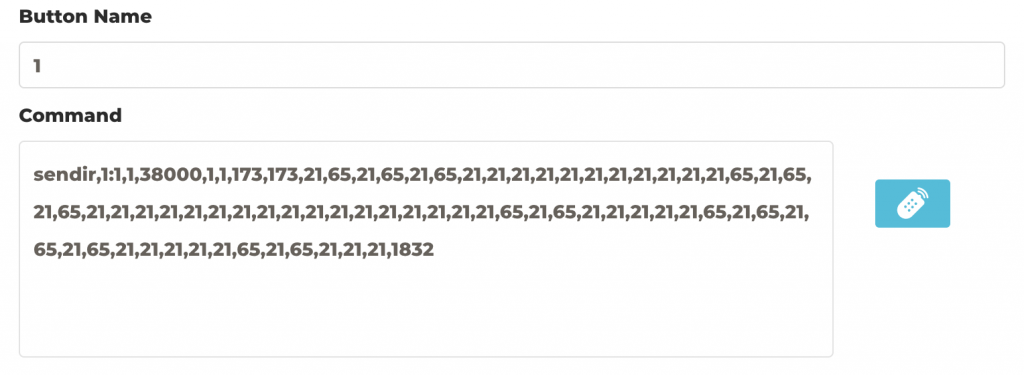
A Global Caché sendir command identifies a module and connector. For example, the 1:1 portion refers to module 1, connector 1; it is not a universal port setting. Check the iTach API specification and your model before editing a command.

Use the test control in the button editor and confirm the physical result. A successful network send is not proof that the TV received the IR signal. Once the individual buttons work, build a short activity and test it before adding voice control.