Pair Eddy Bridge V2 and find your controllers
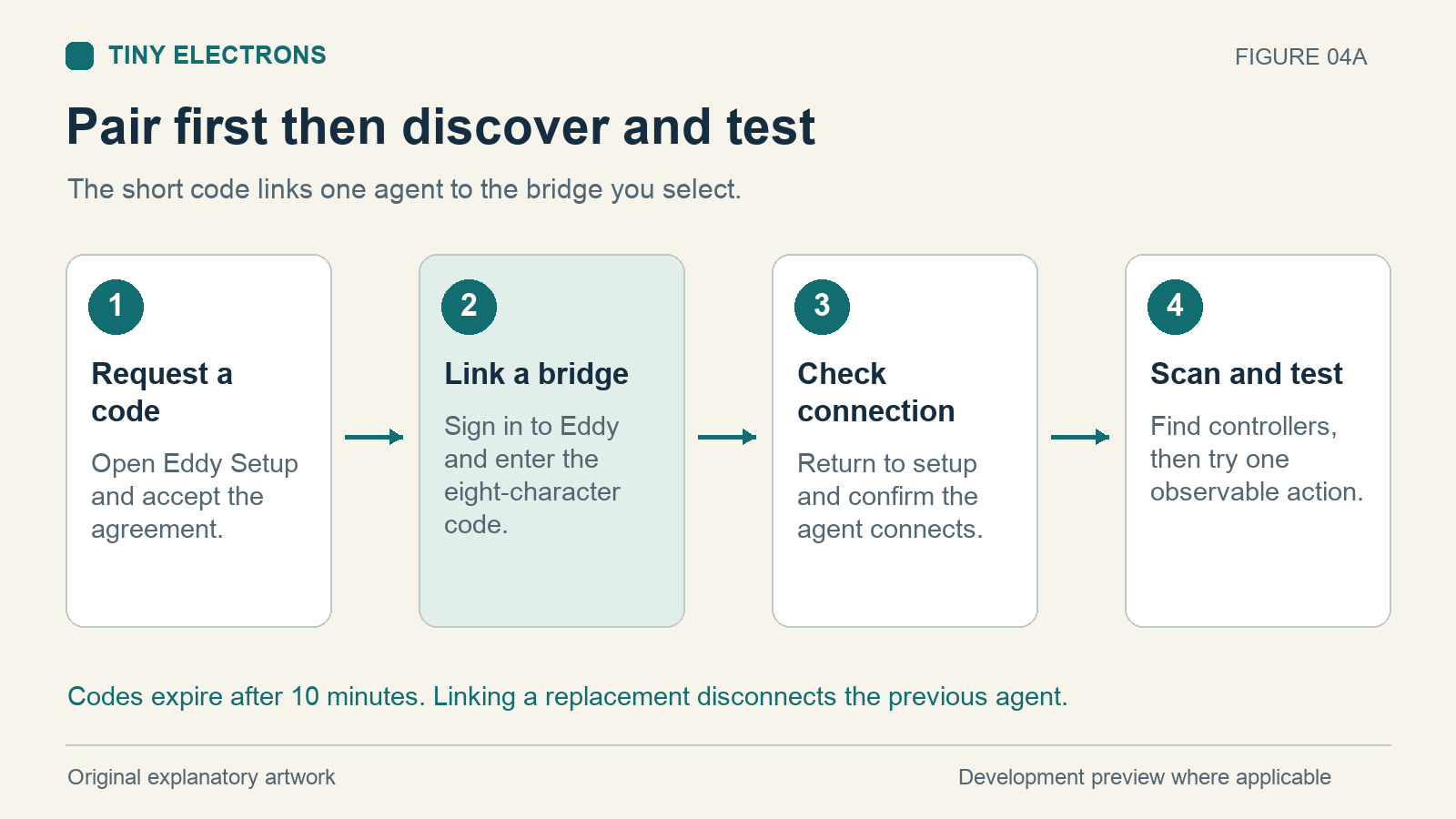
Eddy Bridge V2 pairing links the agent running in your home to a bridge in your Eddy account. You request a short code in Eddy Setup, enter it on the website, and choose the bridge that computer will control. After linking, you can scan the local network for supported controllers.
This guide covers the V2 development workflow. It requires a V2 test build and the matching Eddy website and relay.
Choose the computer that will stay available
The agent needs to run whenever you want it to send commands. A laptop can be useful for trying V2, but closing its lid or signing out can interrupt control. Choose an always-on computer or a suitable Raspberry Pi for a setup you expect to use throughout the day.
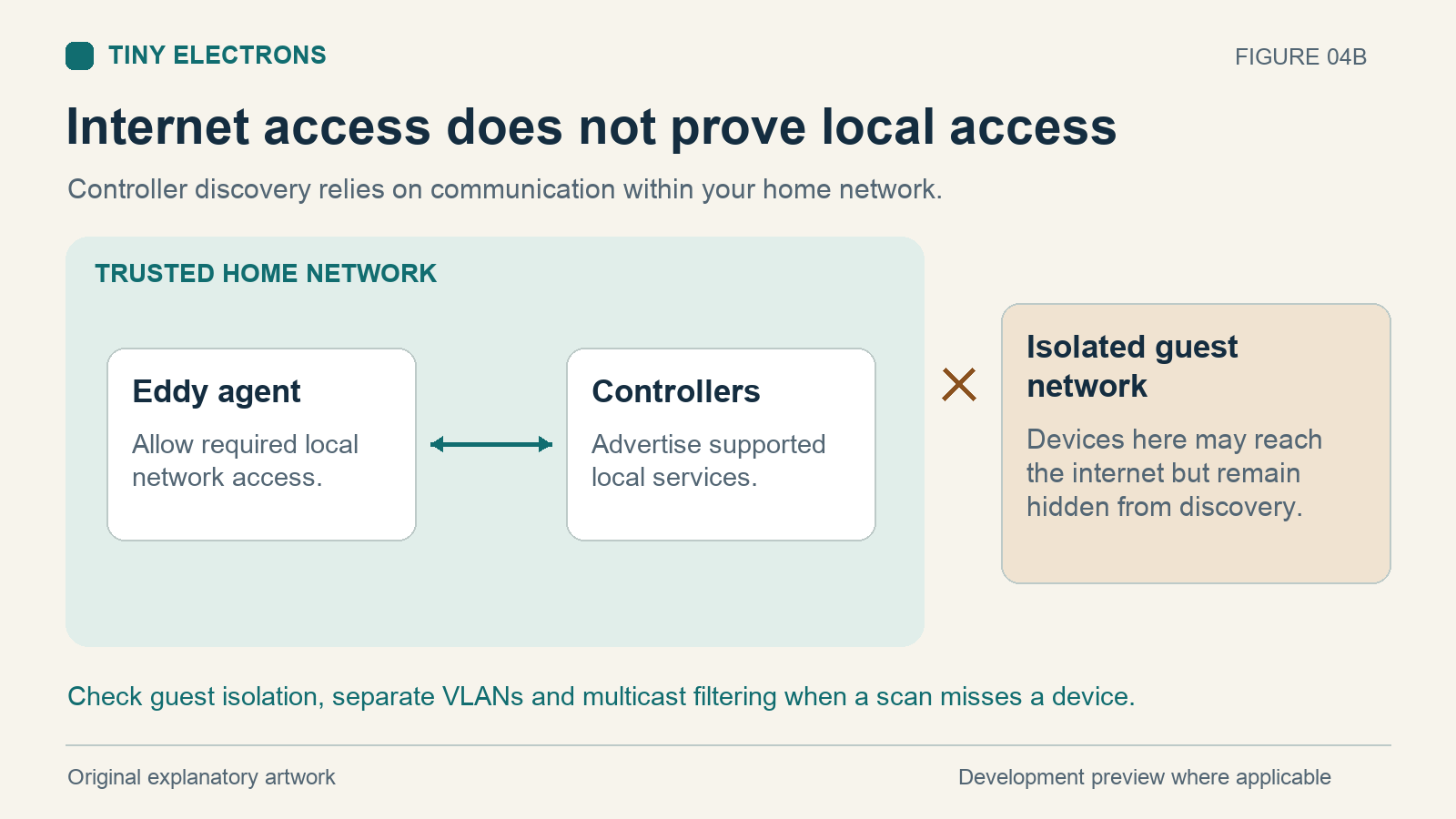
Put that computer on the home network containing your controllers. For the first scan, use the normal home network rather than guest Wi-Fi. Two devices can have Internet access and still be prevented from talking to each other locally.
You will also need access to your Eddy account and the V2 installer or test build supplied for your platform. The code-pairing flow depends on the updated Eddy website and relay being enabled. A working legacy installation does not by itself establish that V2 pairing is available.
Get a pairing code
On the computer running the agent, open Eddy Setup. Read and accept the agreement, then select Get pairing code. Keep the setup page open while you finish linking.
The page displays an eight-character code. It expires after ten minutes. Enter the actual code shown on your own setup page; a code in an illustration is only an example.
This account-linking code is different from a Matter QR code. Use it on the Eddy account page, rather than in Alexa or Google Home. Matter commissioning, when enabled, has a separate local setup flow.
If setup cannot obtain a code, check that the computer is online. Reopen setup and try again once connectivity is restored. An administrator-managed installation may use the separate advanced setup method instead.
Link the correct bridge
- Sign in to the Eddy agent pairing page.
- Enter the code displayed by Eddy Setup.
- Choose an existing bridge or Create a new bridge.
- Select Link agent and return to the setup page to check the connection.
Choose an existing bridge when this computer is replacing the agent for that bridge. Linking the replacement disconnects the previous agent. Create a new bridge when you are adding a separate installation that should keep its own identity.
Some bridges are managed by server configuration. Their mappings must be changed by the administrator before they can be replaced or unlinked through the account page. Do not copy an existing agent’s private configuration onto a second computer to avoid this step; concurrent agents need separate credentials.
If the code expires, request a new one in setup and enter that new code. Re-entering the old code will not extend its lifetime.
Before scanning, check that the account shows the intended bridge linked and that setup completes on the local computer. A code displayed in setup is only a pending request. You have finished this stage when that running agent has received its credentials and connected.
Find controllers on the local network
After a successful link, use Find controllers for the chosen bridge. Leave the agent running while the scan completes. Discovery can take about 35 seconds.
The agent listens for supported local service announcements and sends discovery requests. It does not scan every possible port or guarantee that every network device will appear. Review each result before adding it, especially when the home has several similar devices.
If the terms are unfamiliar, our guide to controllers, devices, buttons and activities explains how these parts fit together.
When a controller does not appear
First, confirm that the controller is powered on and connected to the same home network as the agent. Wake the device if its network service stops while it sleeps.
Next, review any local-network or firewall prompt on the computer running Eddy. Allow the access needed for your trusted home network. A separate VLAN, Wi-Fi client isolation, or multicast filtering can prevent discovery even when ordinary web browsing works.
A scan result proves that a device advertised a service. It does not prove every remote command is supported. Likewise, a missing result does not establish that manual configuration is impossible. Check the controller’s specific setup guide and its network-control settings.
Opening an internet-facing router port will not repair discovery between two devices on your home network. Keep the agent’s outbound connection for cloud access and address the local network permission or isolation rule instead.
Once the controller is added, test one simple, observable command before building an activity. Confirm that the correct physical device responds. Successful pairing, successful discovery, and successful device control are separate checks; completing all three gives you a useful starting point for the rest of your setup.
Check that the setup survives normal use
Restart the host when it is convenient and check that the agent becomes available again. On Windows and Mac, include the user sign in step that starts the desktop installation. Then send the same verified device command once.
If the host comes back online but the device no longer responds, check whether its address or network-control setting changed before pairing the agent again. Relinking an already connected agent is unlikely to fix a local device problem. Our V2 troubleshooting guide explains how to follow the request to the stage that failed.