Set Up a TiVo Controller with the Legacy Eddy Bridge
A compatible TiVo box can accept supported remote-control commands over the local network. The available commands depend on the exact TiVo model, software and Eddy integration. Enabling a network setting alone does not establish that every TiVo command or every current TiVo product is supported.
This guide covers the earlier Eddy Bridge interface shown in the historical screenshots. The V2 agent is separate development work; these steps are not a release or hardware-validation claim for it.

Prepare the TiVo box
Connect the TiVo and your existing compatible Eddy Bridge to a local network where they can communicate. Keep the TiVo powered and verify normal operation with its original remote. Use the model’s own settings and documentation to enable Network Remote Control when that feature is available.
TiVo’s older whole-home installation guide documents this feature for the products it covers. Its menu paths and supported models are historical, so consult the manual for your exact box rather than assuming all current TiVo devices have the same setting.
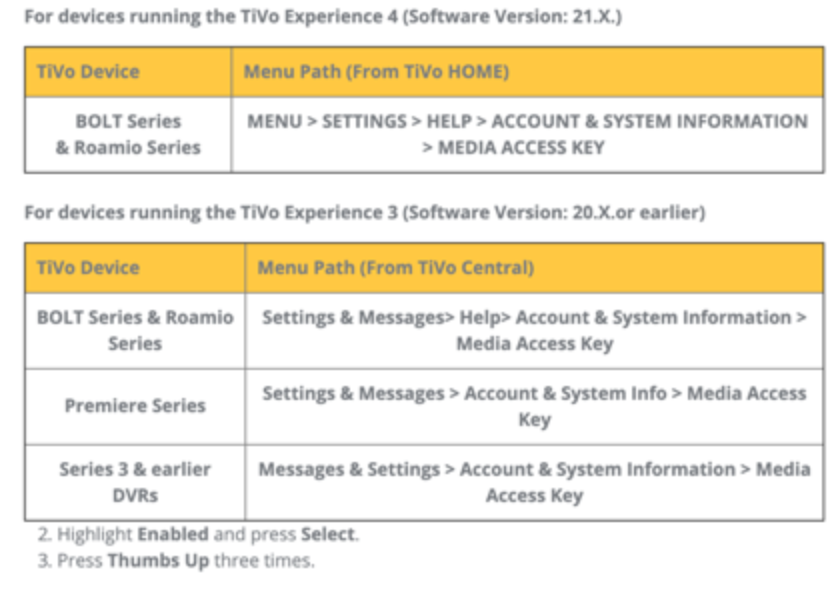
Historical TiVo settings example. Menu locations vary by model and software.
Add the controller in the legacy interface
- Start your existing compatible Eddy Bridge and confirm the TiVo remains on the local network.
- Open the Controllers page and use Search For Controllers in the earlier interface.
- Check the discovered TiVo name and network address.
- Select the intended result and choose Add Controller.
- Review the device and buttons your installed version adds. A discovered box is not proof that every imported button works.

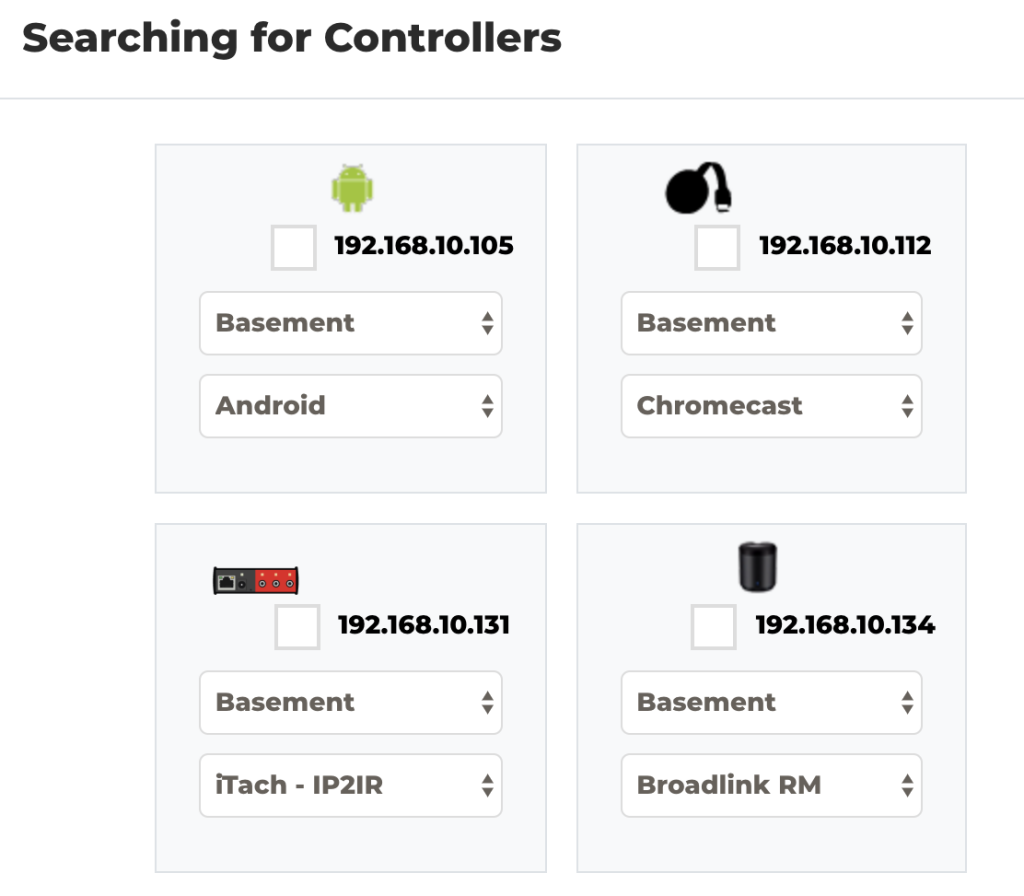
Historical discovery screen. Match the result to the intended TiVo box.
Test the commands your model supports
Begin with one navigation command, such as Up, and check that the highlighted item moves once. Then test a selection and a supported playback command. Keep the original remote nearby so you can return to a known screen.
Navigation, playback, channel keys, video-format changes and TV-remote functions are separate capabilities. Test each capability you need on your exact model. In particular, volume, mute and TV input may depend on how the television or receiver is controlled; the presence of those buttons on a TiVo handheld remote does not prove the same command can be sent through TiVo’s network interface.
- Navigation candidates: Up, Down, Left, Right, Select, Guide and Info.
- Playback candidates: Play, Pause, Forward, Reverse and Replay.
- Additional commands: test only when your specific box and Eddy mapping support them.

Use the test control in the button editor and confirm the visible result. Avoid testing record, delete or format-changing commands casually. If a command fails, note the TiVo model, screen, network-control setting and the action you tried before changing the setup.
Build an activity from tested controls
Once navigation and playback work, create a small activity. Test it from the screens you normally use before connecting it to voice control. TiVo service requirements are separate from Eddy setup. Check the current terms for your box.