Set Up a Broadlink RM Controller with the Legacy Eddy Bridge
A compatible Broadlink RM controller receives a network command and sends an infrared signal to equipment such as a television or receiver. This guide documents the earlier Eddy Bridge workflow and its RM3 examples; model names alone do not prove compatibility with every firmware or Eddy version.
The screenshots and RM3 image below are historical. The V2 cross-platform agent is separate development work, and this article does not establish its release availability or completed physical testing.
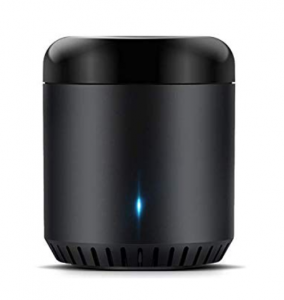
Check the model before setup
The original guide listed RM3 and RM3 Pro+ examples. Check the exact hardware identifier, firmware and supported local-control behavior before buying or configuring a unit. IR support does not establish RF support, and not every RM-family model has the same functions. Check current availability and price for the exact model before making a purchase.
Connect Broadlink to your home network
Use the manufacturer’s app and the instructions for your model. Broadlink’s official downloads page provides model-specific manuals and setup guides. Follow its requirements for Wi-Fi bands, pairing mode and local access.
Confirm the controller works through its supported manufacturer setup, then place your existing compatible Eddy Bridge and RM controller on a trusted local network where they can communicate. Do not expose the controller directly through router port forwarding as part of this procedure.
Add the controller in the legacy interface
- Start your existing compatible Eddy Bridge.
- Open the Controllers page and select Search For Controllers in the earlier interface.
- Inspect the model and address of the discovered RM controller.
- Select the intended controller and choose Add Controller. An empty scan can also indicate a network or access problem; it is not proof of support or incompatibility.

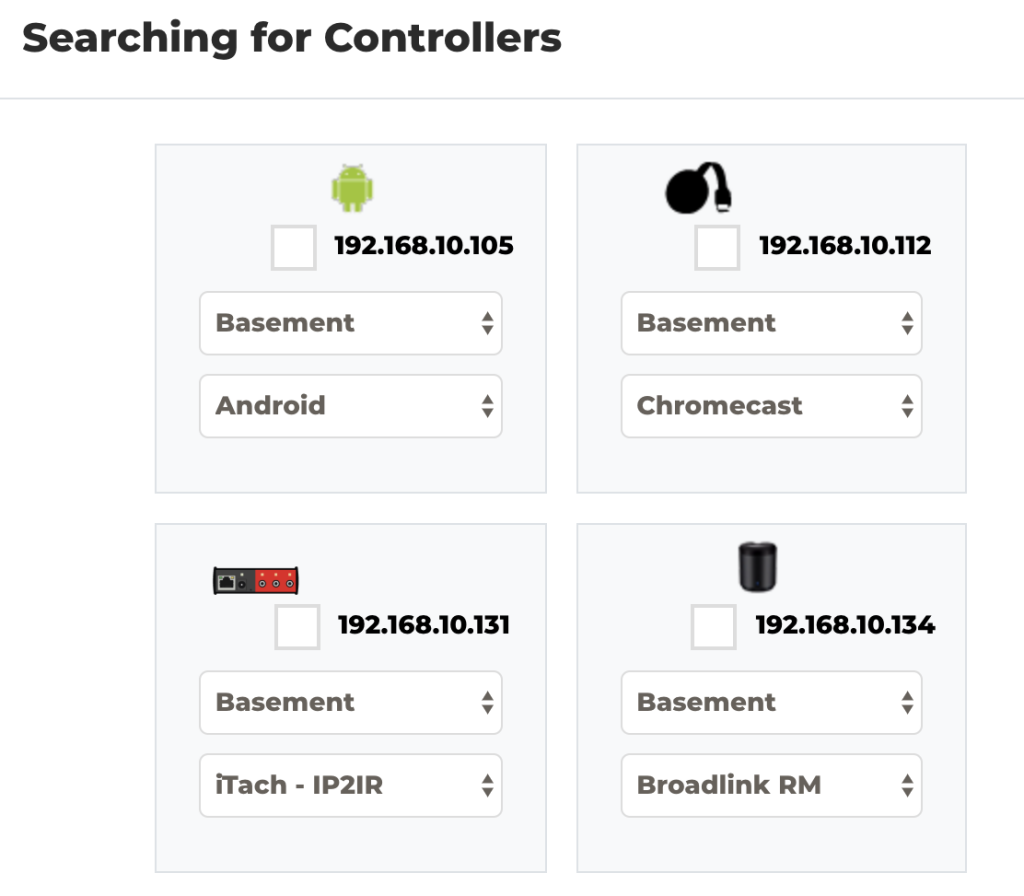
Historical search screen. Verify the actual RM controller before adding it.
Add a device and a button
Open Devices and add the equipment the RM controller will operate, such as your TV. In Eddy’s terminology, the Broadlink unit is the controller and the TV is the device. Give them distinct names so it is clear which one a setting belongs to.
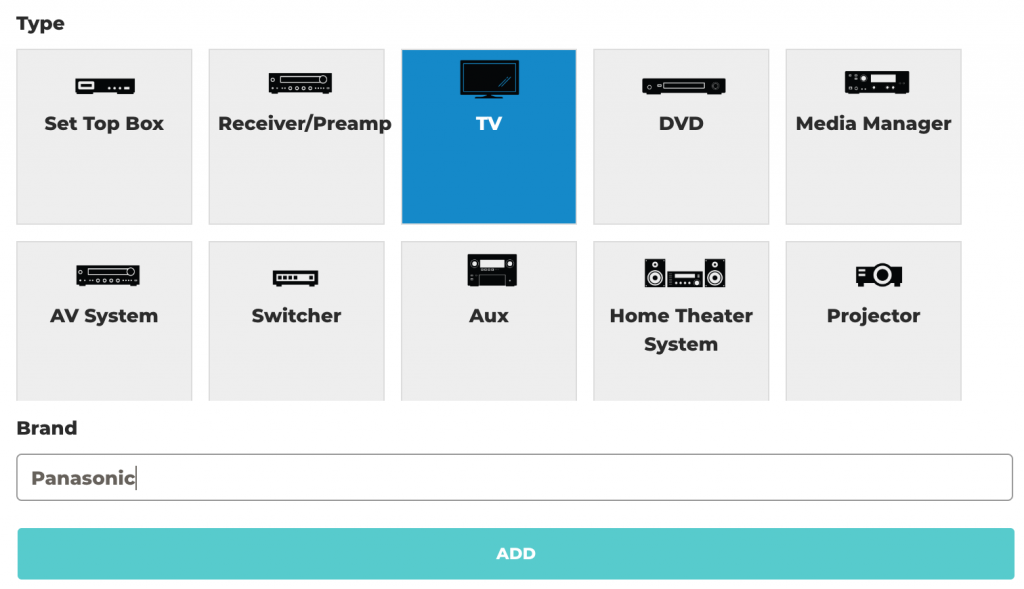
Open the legacy Buttons tab, add a button, and give it a specific name. If the equipment supports separate ON and OFF commands, use those names. A button named Power may be a toggle, which changes the current state each time.
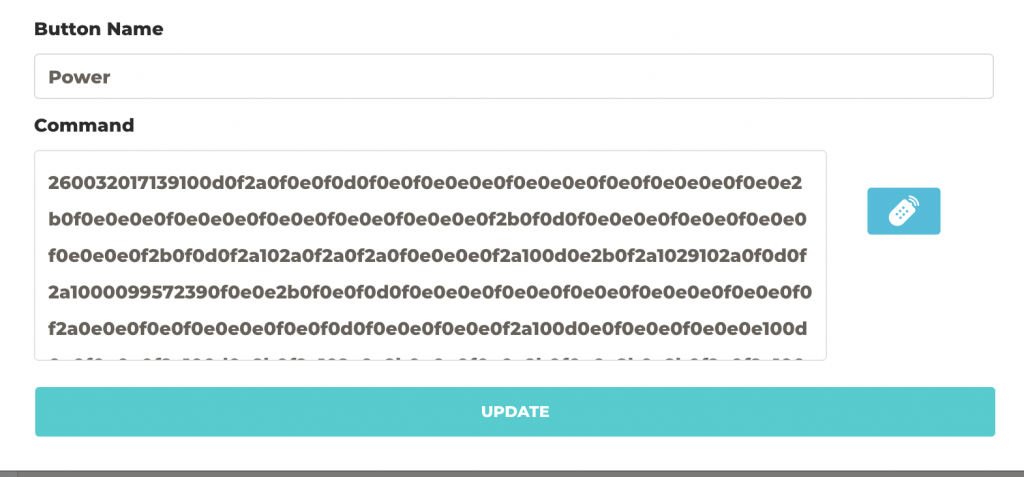
Paste an existing code only if its format matches the installed integration. A code copied from another controller or another representation may need conversion; do not assume every hexadecimal string is interchangeable.
Learn one IR command
- Start the learning function in the legacy button editor.
- Wait for the controller’s learning indication described in its manual. The LED color can differ by model and firmware.
- Aim the original remote at the controller and press the desired button once.
- Wait for a code to appear, then save it before starting another learning attempt.
- Test the saved command once with the target device in view.
Confirm the physical result

Use the test control in the button editor and check the equipment. If nothing happens, confirm IR placement, the saved code, the selected device and local connectivity before repeating the command. A successful send does not prove the target received the infrared signal.
After one button works consistently, add the remaining supported controls and build a short activity. Test voice control only after the individual buttons pass.