Setting up the legacy Eddy Bridge image
This guide covers the original Raspberry Pi image of Eddy Bridge. Its screenshots, videos, download references and local setup flow describe that generation. They are not the installation procedure for the Eddy Bridge V2 agent.
V2 is being developed for Windows, macOS, Linux and Raspberry Pi. Its cloud account pairing and optional local Matter setup use different flows. Confirm the supported release and instructions for the version you have before writing an image to a card or replacing a working bridge.
Before you start
Identify your Raspberry Pi model and the image version intended for it. The historical downloads below name Pi 4, Pi 3 and Pi Zero W images; that list does not establish support in a current V2 installer. Have a suitable power supply, microSD card and access to your trusted home network ready.
The legacy image is designed for headless operation through a local website. A keyboard or display may help with a problem, but they are not part of its normal browser-based setup. Setup time varies with the card, image, network and any troubleshooting.
Legacy installation video
The video shows the legacy software. Compare its screens with the version you are installing.
Choose the matching legacy image
The original download references are Raspberry Pi 4, Raspberry Pi 3 and Raspberry Pi Zero W. Confirm availability, the stated model and any integrity information supplied with the download. Do not assume an image is current simply because its link remains online.
Read the legacy firmware update notes for the same generation. An image update and a V2 agent package are different installation artifacts.
Write the card
- Extract the downloaded archive using an appropriate archive tool.
- Check that the extracted image matches the instructions supplied for that release.
- Use a trusted image-writing tool to write it to the intended microSD card.
- Double-check the selected destination before writing because the operation replaces the card’s contents.
- Let the tool finish verification and eject the card cleanly.
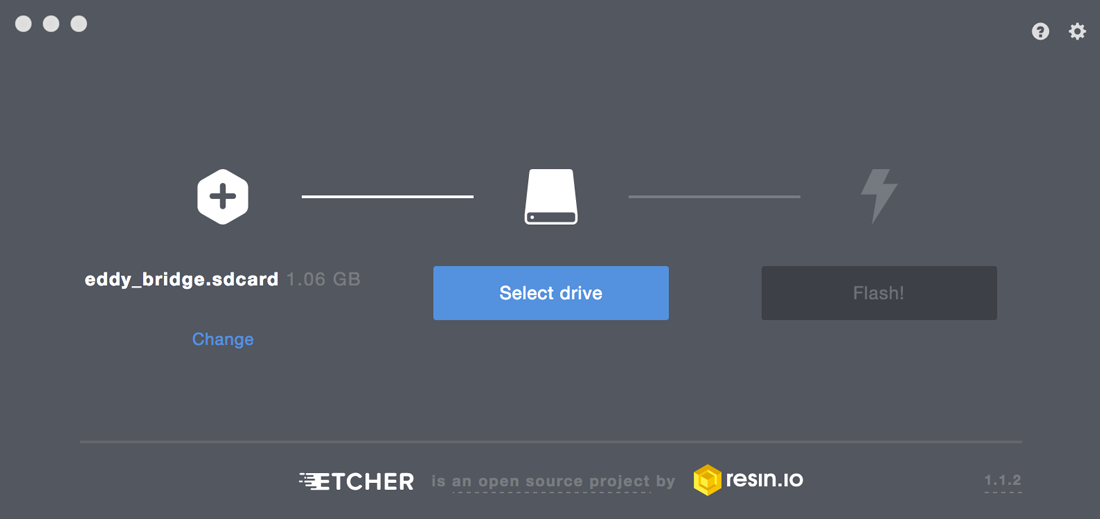
The screenshot shows the historical Etcher workflow. Current tool layouts and file extensions may differ. Use the instructions that accompany your image instead of renaming an unfamiliar file to match the screenshot.
Connect and start the Pi
With power disconnected, insert the card and connect Ethernet if you plan to use it. Connect HDMI when you need a supported CEC path to the television, then connect power. Allow the first boot to complete before interrupting the device.
An HDMI cable is only one part of CEC control. Enable CEC in the TV settings and confirm the Pi, image and television support the intended command. Test explicit on and standby independently.
Open the legacy local setup
On the same trusted home network, try the legacy address eddy.local. If it does not resolve, use your router’s device list to identify the Pi’s actual LAN address. The old 10.0.0.1 reference applies only to the relevant legacy setup network; it is not a universal address for your Pi.
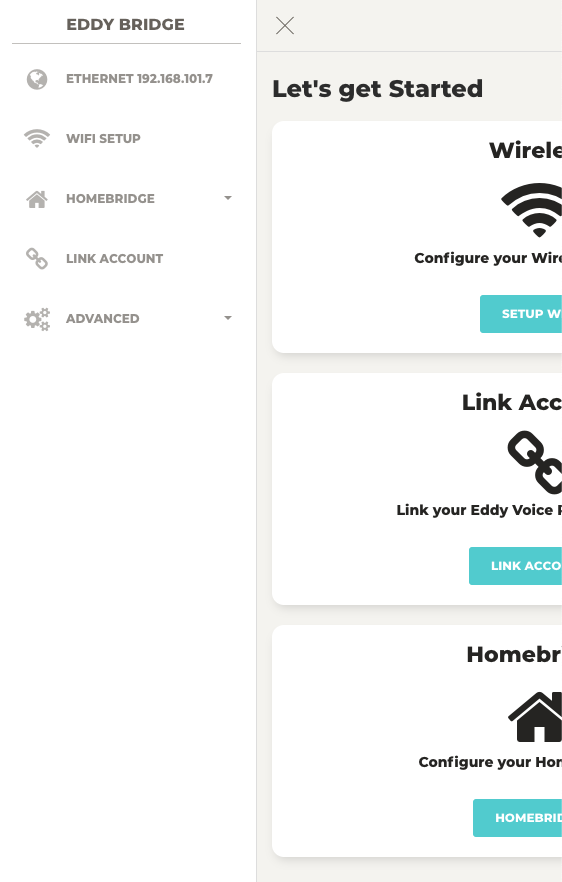
If your image creates an Eddy setup Wi-Fi network, follow that release’s supplied credentials and connect only while configuring your own device. In the local page, choose WiFi Setup when needed, select your home network and enter its password. Keep this local setup service behind your router.
Link the account and evaluate HomeKit separately
In the legacy local interface, use Link Account, sign in and review the requested link before accepting. Confirm the correct bridge appears in your account, then test a single controller command.
The original image also included a Homebridge-based HomeKit path. Add that accessory using the pairing information supplied by your own installation. Use the accessory name and private pairing information shown by your own installation. HomeKit pairing, Eddy cloud account linking and Matter commissioning are separate operations.
Check your current account terms for trial length, subscription requirements and included local features.
Confirm the installation
Check the intended device’s power or input, restart the Pi when convenient and confirm control returns. If the local page works but the cloud does not, investigate account linking rather than reflashing immediately. Preserve configuration before attempting a reinstall.