Setting up port forwarding for a legacy Eddy installation
Legacy installation guide. This guide explains port forwarding used with earlier Eddy installations. For a new installation, use the outbound Eddy agent when a supported release is available. Its cloud connection starts inside the home and does not require publishing a TV or IR controller port to the internet. The V2 work described elsewhere in this series is a development preview, so confirm availability before replacing a working bridge.
Decide whether a forward is needed
A port forward directs an incoming connection at your router to a particular service on a device inside your network. It does not add encryption, a password or permission checks to that service. A modern router can restrict the permitted source addresses and destination port, but the device still needs suitable protection. See the UniFi remote access guide for this distinction.
Do not expose a device-control service simply because a router can forward its port. For personal remote administration, an authenticated and maintained VPN may be a better route. An Eddy cloud service will not automatically join your personal VPN.
Collect the addresses and service details
If you are maintaining an existing exception, identify the controller’s LAN address, the router’s LAN address, the public address used by the connection and the exact service port and protocol. Reserve the controller’s address through the router when appropriate so the mapping does not silently point somewhere else.
Your router’s device list or the controller’s own setup utility may provide its local address. The Fing screenshots below show a historical workflow; current app layouts and labels may differ.
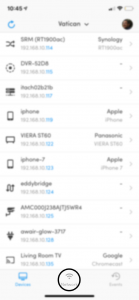
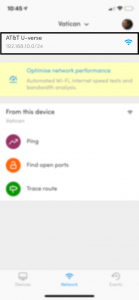
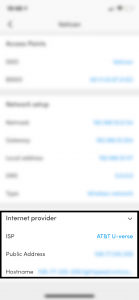
A public-address lookup alone does not establish that your provider permits incoming connections. Carrier-grade NAT or another router upstream can change the path. Check with the operator rather than enabling a broad DMZ or disabling a firewall to make a test pass.
Limit an exception to its actual purpose
Use the router documentation for your specific model and version. The UniFi port forwarding documentation is one example of a router that can select the incoming source addresses, forwarding destination, port and protocol. These settings are not available in every home router.
- Forward only the required destination service and protocol.
- Allow only authoritative source addresses that need access, where the router supports this.
- Keep other unsolicited inbound access blocked and inspect any automatically generated allow rule.
- Use the service’s supported authentication and encryption; an address filter cannot supply either.
Read the two-controller example correctly
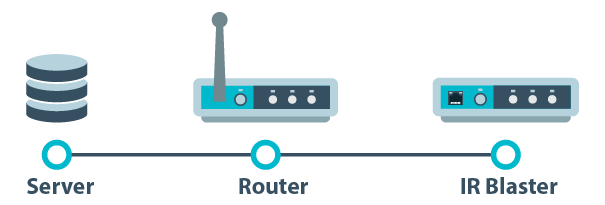
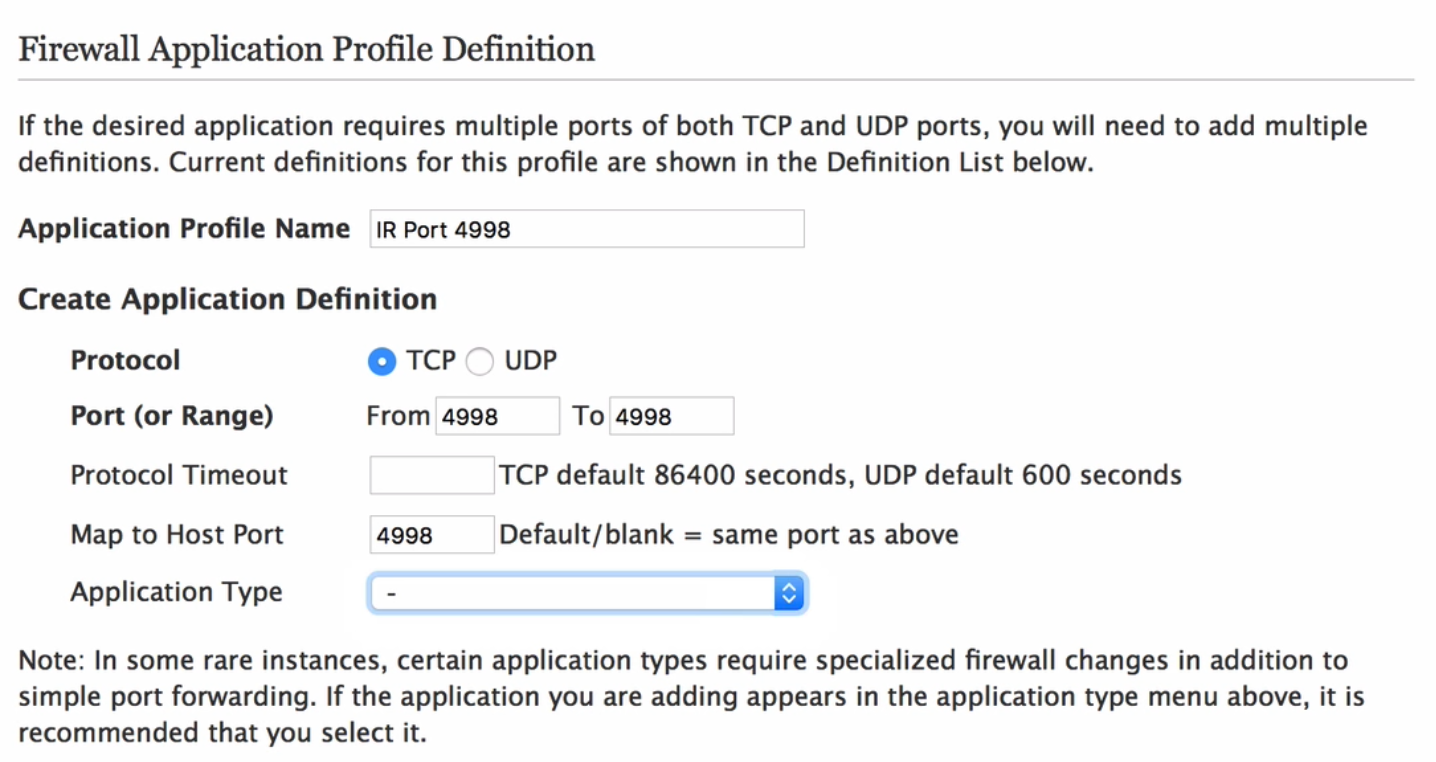
This example uses two Global Caché controllers listening on TCP port 4998, one at 192.168.10.35 and one at 192.168.10.36. It assigns different external ports so the router can select the intended destination. The Global Caché iTach API documents the relevant controller protocol; verify the model and service before using a port number.
| Controller | Example external port | Example internal destination |
|---|---|---|
| First controller | 4998 | 192.168.10.35 TCP 4998 |
| Second controller | 6777 | 192.168.10.36 TCP 4998 |
An external port must be valid, available and permitted by the router. Changing its number does not authenticate callers. Do not copy these historical mappings without establishing the permitted source and the service’s protection.
Verify and remove obsolete access
After a migration, test an observable command through the agent, remove the old forwarding exception and check from an external network you control that the former device-control endpoint is inaccessible. Then retest the agent. A failed ping alone does not establish that a control port is closed.
Check IPv6 firewall access separately. IPv6 commonly works without traditional port-translated NAT, so an empty IPv4 forwarding list is not proof that IPv6 access is blocked. The Netgate IPv6 guidance explains why the two checks differ. Keep the local connectivity your devices require, including IPv6 for Matter where applicable.